How to Get a Custom Steam In-Game Title
Updated
Normally your Steam status shows the name of the game you are playing. But you can also make it show any text you want, like a joke, a message to your friends, or emojis. Here are two ways to do it.
Method 1: Add a renamed non-Steam game
Steam lets you add programs that aren't on Steam to your library, and you can name them whatever you like.
- In Steam, click Games in the top menu and choose Add a Non-Steam Game to My Library.
- Pick any program from the list (or browse to one) and click Add Selected Programs.
- Find it in your library, right-click it and open Properties.
- Change the name at the top to the text you want to show.
- Launch it from your library.
Your friends will now see you as In non-Steam game with your custom name.
The downside: the program has to keep running on your PC, and the title disappears as soon as you close it or turn your PC off.
Method 2: Custom In-Game Title on FreeHourBoost
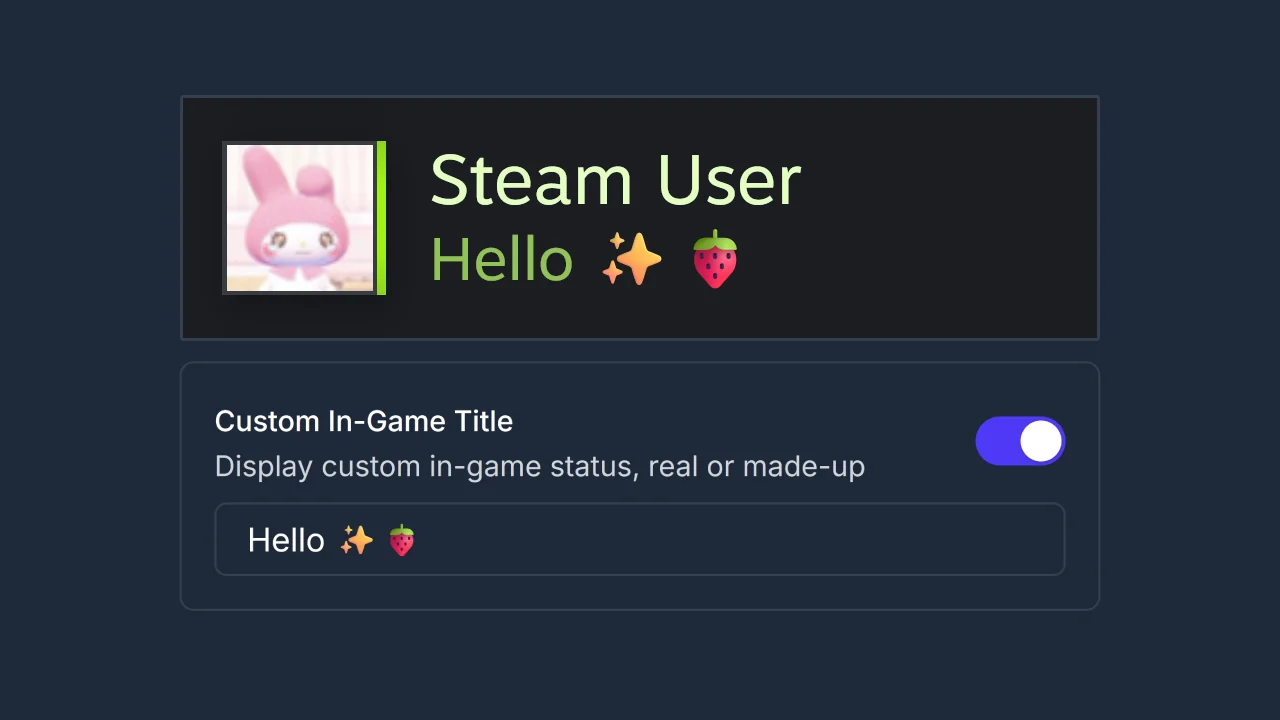
With FreeHourBoost you can set a custom title that stays on 24/7, without running anything on your PC:
- Create an account and add your Steam account to a plan.
- Enter your text in the Custom In-Game Title field. Emojis work too.
- Start the plan. Your custom title shows on your profile and in your friends' friend lists.
The custom title shows while your plan keeps boosting the games you picked, so you collect playtime at the same time. On paid plans you can set any title. On the Free plan the title is set to FreeHourBoost.com.
Ideas for your title
- An away message, like "AFK, back at 8pm"
- A link to your stream or Discord name
- Emojis or an inside joke for your friends
Keep it friendly: like your profile name, the title is visible to anyone who can see your profile.