How to Hide Your Steam Recent Activity
Updated
Your Steam profile shows a Recent Activity box with the last games you played and how many hours you played in the past two weeks. If you would rather keep that to yourself, there are a few ways to hide it. Which one is right depends on whether you also want to hide your playtime.
Option 1: Make your game details private
This hides your recent activity, your games list and your playtime from everyone except you.
- Open Steam and click your profile name at the top, then choose Profile.
- Click Edit Profile and open Privacy Settings.
- Next to Game details, choose Private (or Friends Only to hide it from everyone except friends).
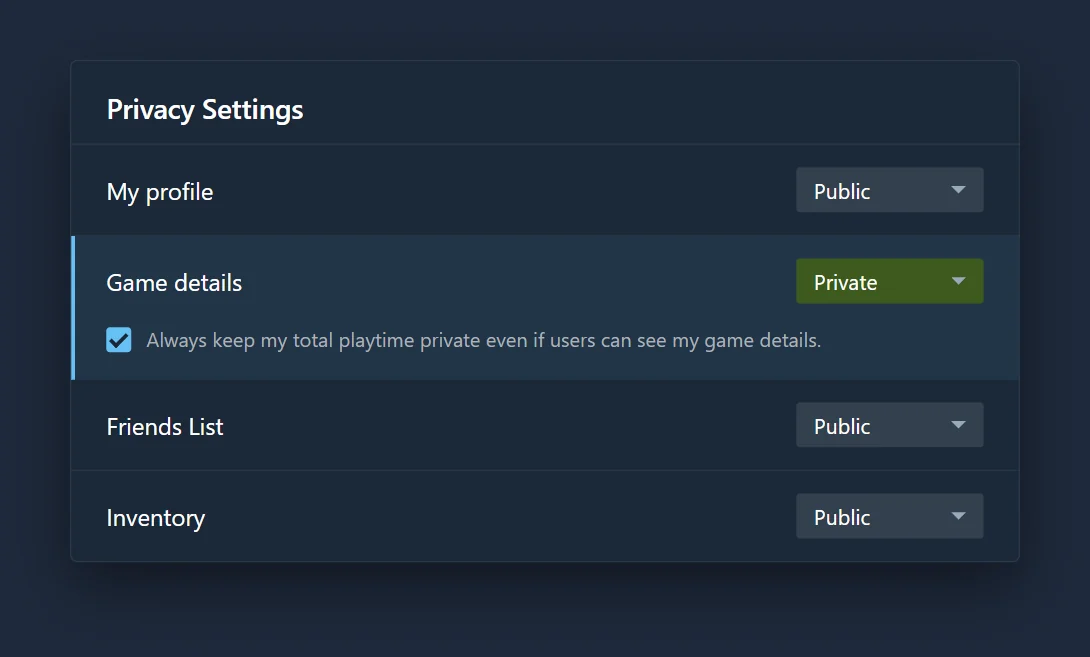
The change saves automatically. Visitors will no longer see your recent games or your library.
Under the same setting there is also a checkbox called "Always keep my total playtime private even if users can see my game details". Tick it if you want people to see which games you own, but not how many hours you have.
Option 2: Mark specific games as private
If you only want to hide certain games, Steam lets you mark individual games as private:
- Go to your Library.
- Right-click the game and choose Manage → Mark as Private.
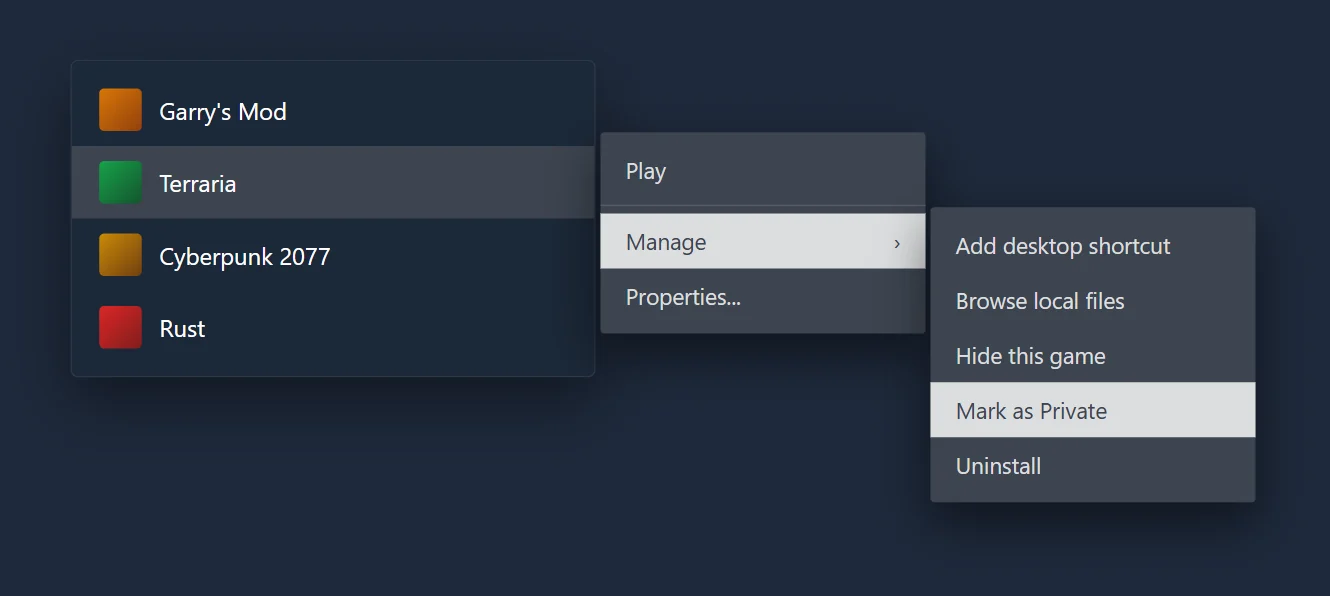
Private games are hidden from other people looking at your profile and library, while the rest of your games stay visible.
Option 3: Hide recent activity but keep your playtime visible
The options above hide everything at once. Many players want the opposite: keep their profile public and their hours visible, but not show which games they played last.
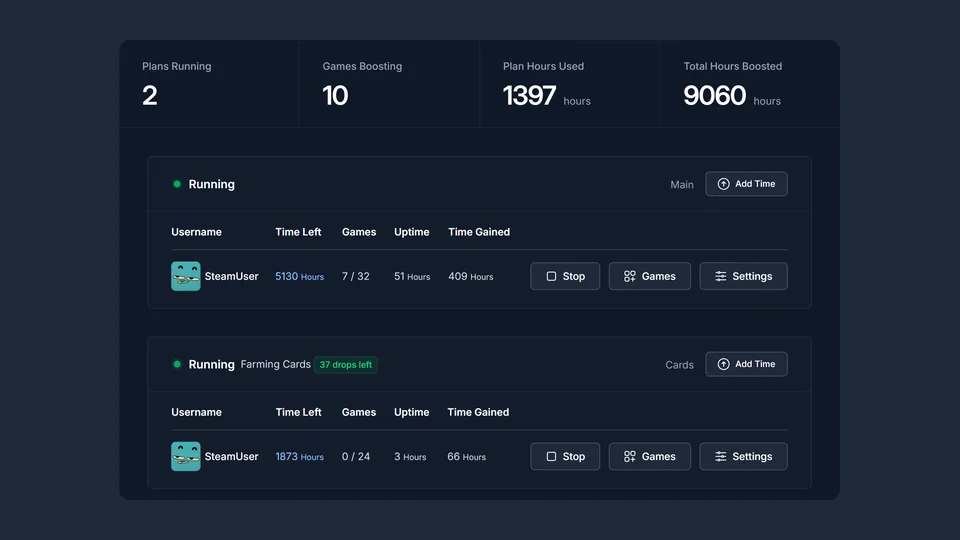
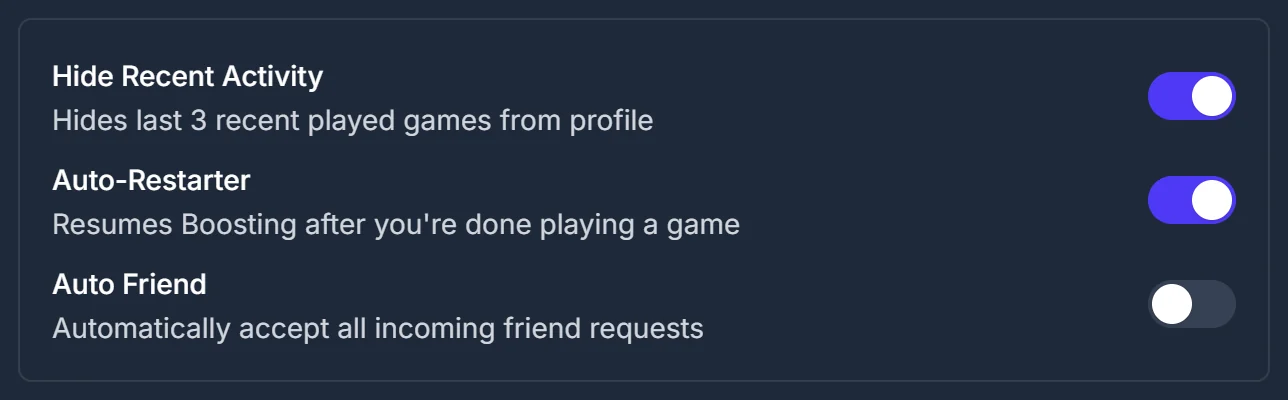
Steam has no setting for this. The Recent Activity box simply shows the three games you played most recently. FreeHourBoost's Hide Activity feature uses that: while your plan is running, it fills those three spots so your real recently played games are not shown, while your "hours past 2 weeks" total stays visible on your profile.
- Create a free account and add your Steam account to a plan.
- Turn on Hide Activity in the plan settings. It is available on all paid plans.
- Start the plan. Your recent activity is hidden while it runs.
Which option should you use?
- Hide everything: set Game details to Private.
- Hide only your hours: tick "Always keep my total playtime private".
- Hide a few specific games: mark them as private in your library.
- Hide which games you played, but keep your hours public: use Hide Activity on FreeHourBoost.