How to Idle Steam Games Without Your PC On
Updated
The classic way to idle Steam games is to leave a game, or an idler program, running on your PC. That works, but your computer has to stay on day and night. Cloud idling solves that: your playtime keeps going up even when your PC is turned off.
The problem with idling on your own PC
- Electricity and wear: running a PC 24/7 just to collect hours adds up on your power bill.
- You can't play: launching a game yourself stops the idler, and you have to remember to start it again.
- Interruptions: updates, restarts, internet drops or a sleeping PC all stop your idling until you notice.
How cloud idling works
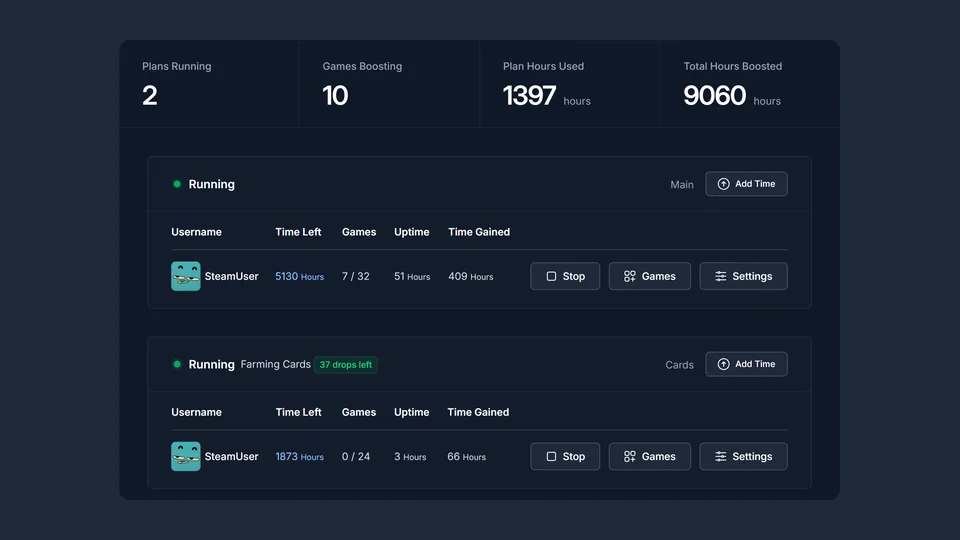
Instead of your PC, a server signs in to your Steam account and tells Steam which games you are playing. Steam counts the playtime the same as if you had launched the games yourself. No game is actually started, so it doesn't need a gaming PC, just a connection to Steam.
Because it runs on a server, it keeps going around the clock, whether your computer is on, off or you are on vacation.
How to set it up with FreeHourBoost
- Sign up for free. The Free plan includes 100 hours and can be renewed when it runs out.
- Add your Steam account.
- Choose the games you want to idle.
- Start the plan and turn off your PC. Your hours keep going up.
Useful settings
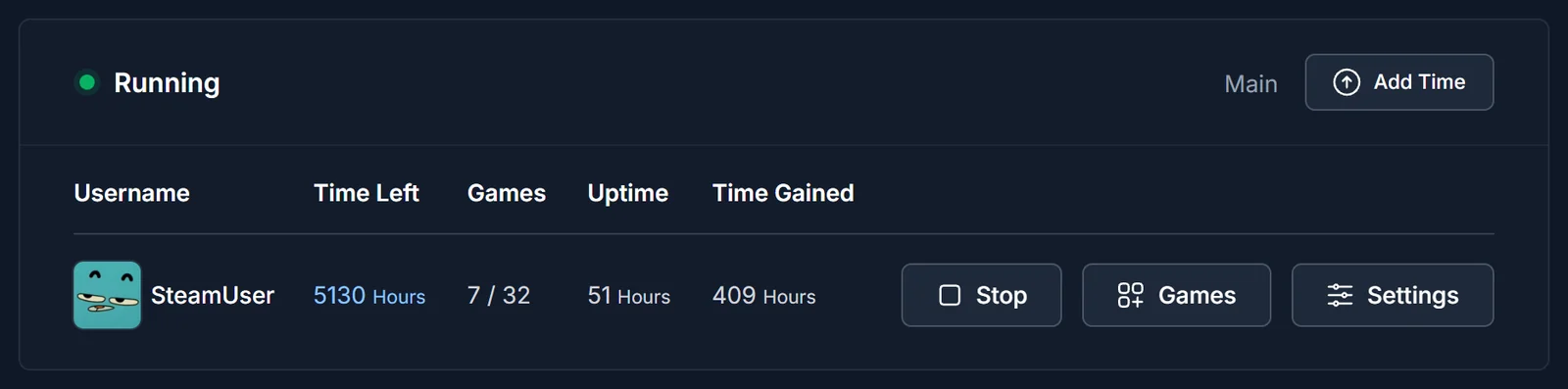
- Auto-Restarter: when you play a game yourself, boosting pauses. The Auto-Restarter resumes it automatically when you are done, so you never have to remember.
- Auto Stop: stop automatically after a set number of hours, if you only want to reach a certain target.
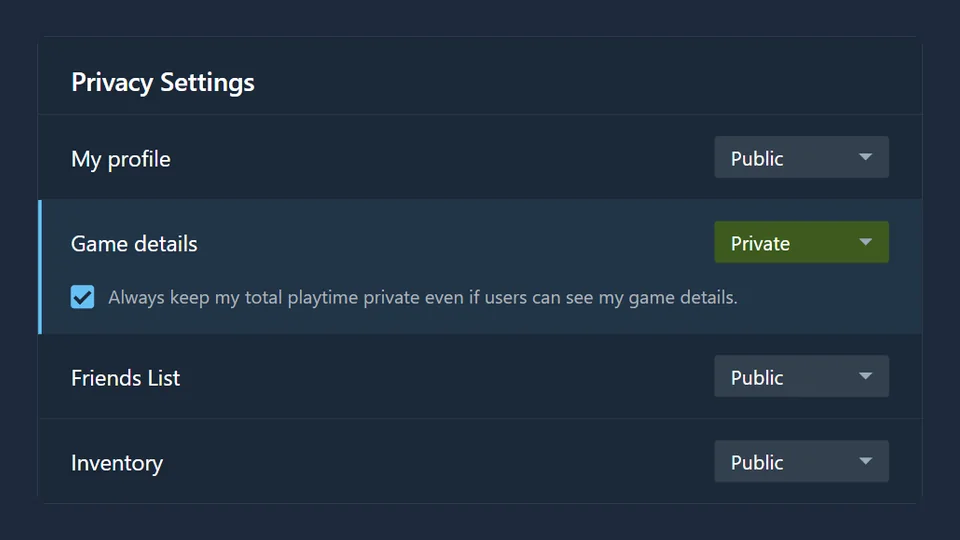
- Appearance: choose whether friends see you as Online, Away or Offline while idling.
How long will it take?
Cloud idling runs 24 hours a day, so 1,000 hours takes about 42 days, and every selected game gains those hours at the same time. Try the Steam Hours Calculator to work out your own target.