How to Auto Accept Steam Friend Requests
Updated
Getting a lot of friend requests on Steam? Maybe you trade, stream, run giveaways or just met a full lobby of people. Accepting them one by one gets old fast, and requests sit there while you're offline. This guide shows how to handle friend requests in Steam, the built-in shortcut most people don't know about, and how to auto accept Steam friend requests.
Can Steam accept friend requests automatically?
No. Steam has no setting to accept friend requests automatically. Every request has to be accepted by hand, and only while you're signed in. There are two things Steam does offer, though.
Without FreeHourBoost, option 1: accept requests manually
- In the Steam client, open Friends & Chat and click the add friend icon, or go to your profile and open Friends.
- Open the Pending Invites tab.
- Click Accept on each request, or Ignore / Block the ones you don't want.
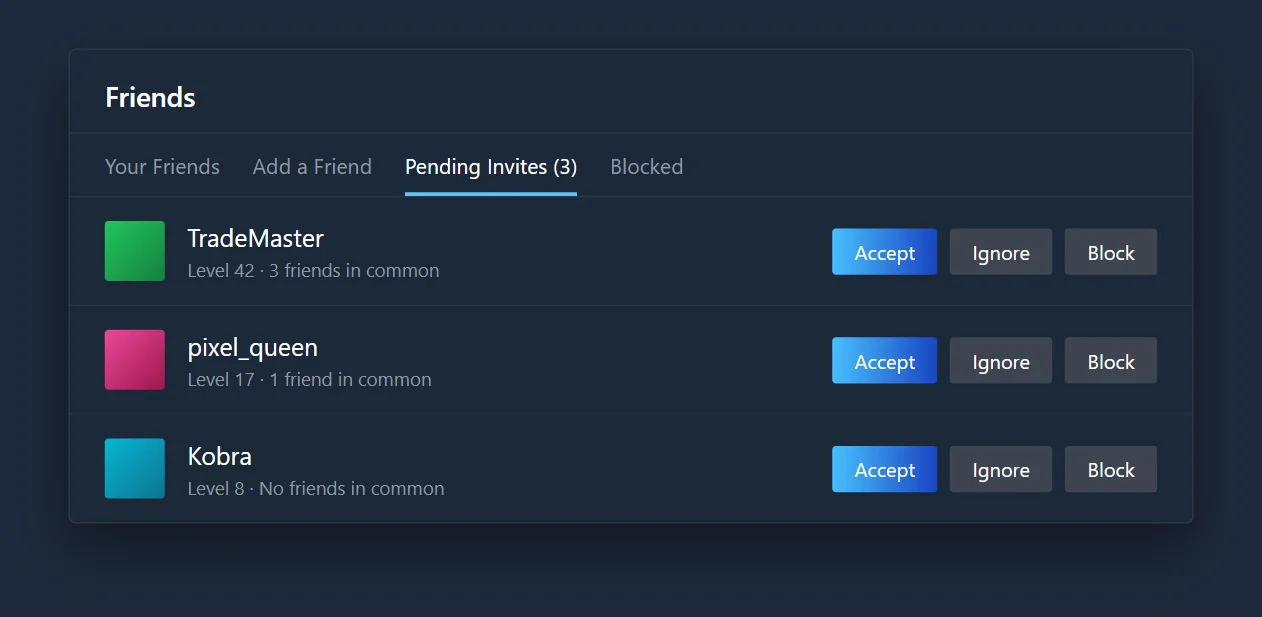
You can also accept requests from the Steam Mobile app. Turn on notifications for friend invites there and you can accept them from your phone, so people don't have to wait until you're back at your PC.
Without FreeHourBoost, option 2: send a Quick Invite link
If you know who wants to add you, a Quick Invite link skips the request completely. Whoever opens the link is added as your friend right away, no accepting needed.
- Open the Add a Friend page in Steam (the add friend icon in Friends & Chat).
- Copy your Quick Invite link, or click to create a new one.
- Send it to the person, for example on Discord or in your stream chat.
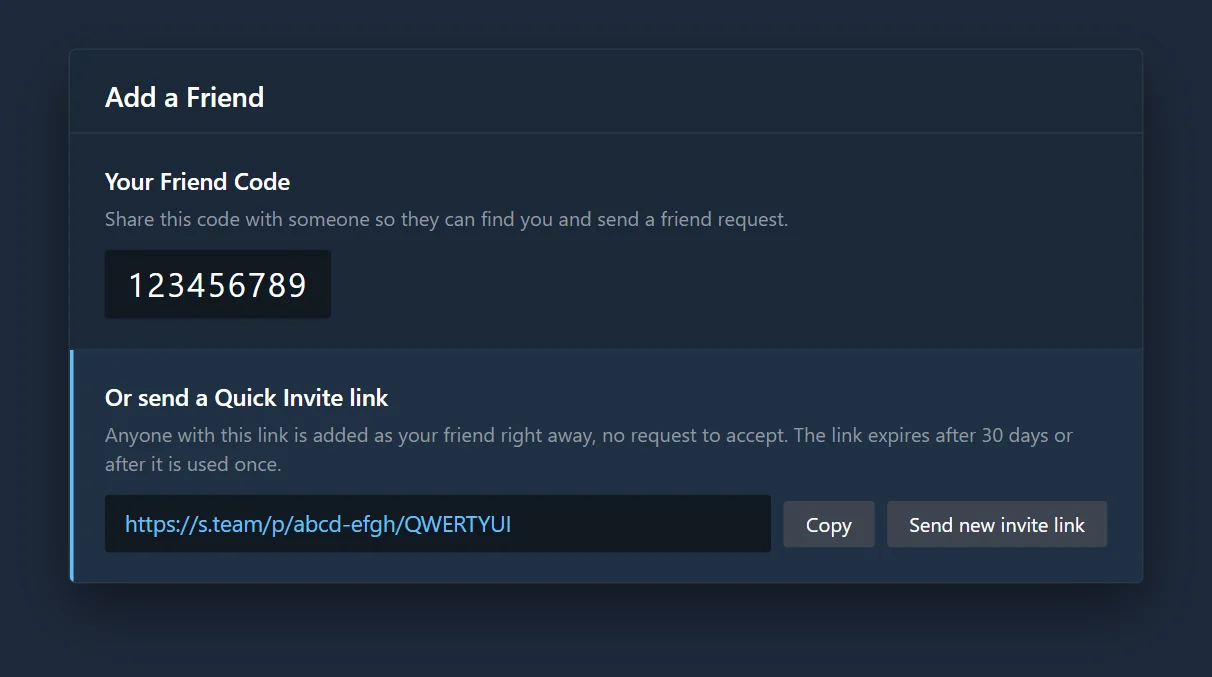
The catch: a Quick Invite link only works once and expires after a while, so you need a new link for every person. It's great for one friend, but not for a stream audience or a trading group. It also doesn't help with requests people already sent you.
With FreeHourBoost: auto accept every friend request
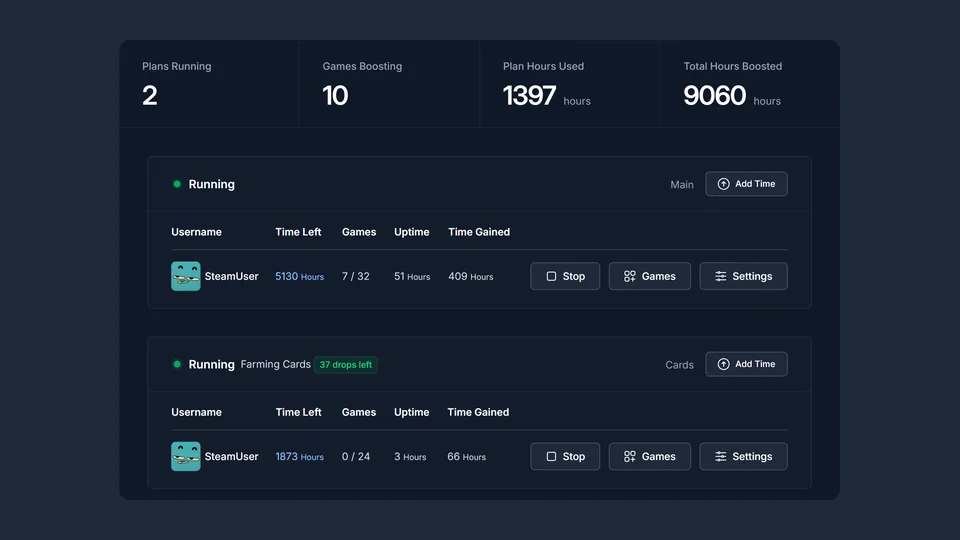
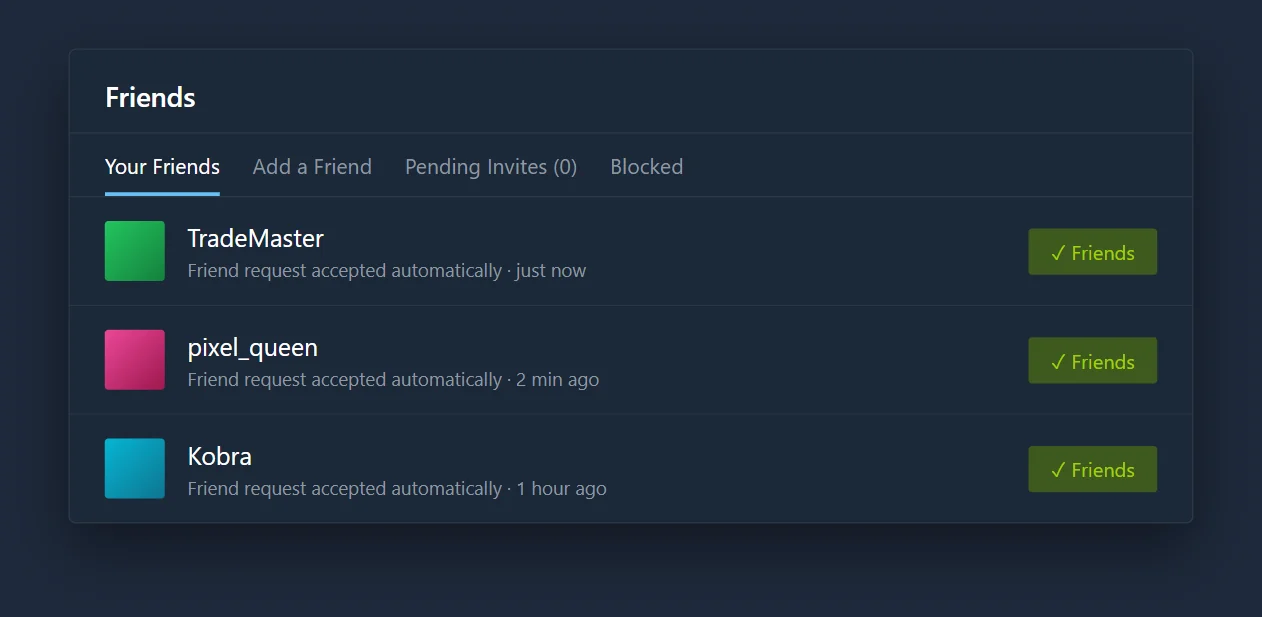
FreeHourBoost keeps your Steam account online in the cloud, and with Auto Friend turned on it accepts every incoming friend request for you, day and night, even with your PC off.
- Create an account and add your Steam account to a plan.
- Open the plan's Settings and turn on Auto Friend.
- Start the plan. New friend requests are now accepted as soon as they come in.
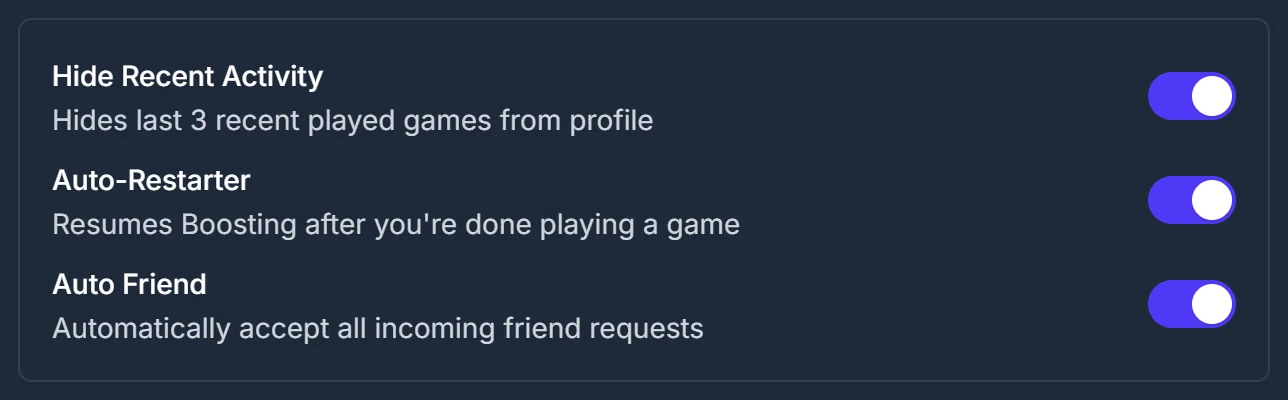
Auto Friend is included in the Basic plan and higher. Your plan boosts your hours at the same time, and you can add a custom away message, so new friends get a reply from you right after they're added.
Who should auto accept friend requests?
- Traders, so buyers can add you and send offers without waiting.
- Streamers and content creators who share their Steam profile with viewers.
- Giveaway hosts who need winners on their friends list.
- Anyone who plays with new people a lot and wants to stay in touch after a match.
Stay safe when you accept everyone
Accepting every request also means accepting people you don't know. A few habits keep your account safe:
- Never log in through links people send you. Fake Steam login pages are the most common way accounts get stolen.
- Always check trade offers in Steam itself before you accept, and be careful with "accidental report" or "verify your account" stories.
- Remove or block anyone who spams or acts suspicious. Auto Friend accepts requests, it doesn't stop you from cleaning up.
- Keep an eye on your friend limit. Steam allows 250 friends to start, and raising your Steam level adds more room.
Common questions
Does Auto Friend accept requests I already had?
It accepts requests that come in while your plan is running. Accept older pending invites once by hand in Steam.
Does it work when my PC is off?
Yes. Your plan runs in the cloud, so your Steam client doesn't need to be open.
Can I turn it off again?
Yes, switch Auto Friend off in your plan settings at any time. Friends you already added stay on your list.