How to Set an Auto Reply (Away Message) on Steam
Updated
You're away from your PC, a friend messages you on Steam, and they get no answer. Most chat apps let you set an automatic reply for this, but Steam doesn't. This guide covers what Steam itself can do, and how to set up a real auto reply (away message) that answers your friends for you.
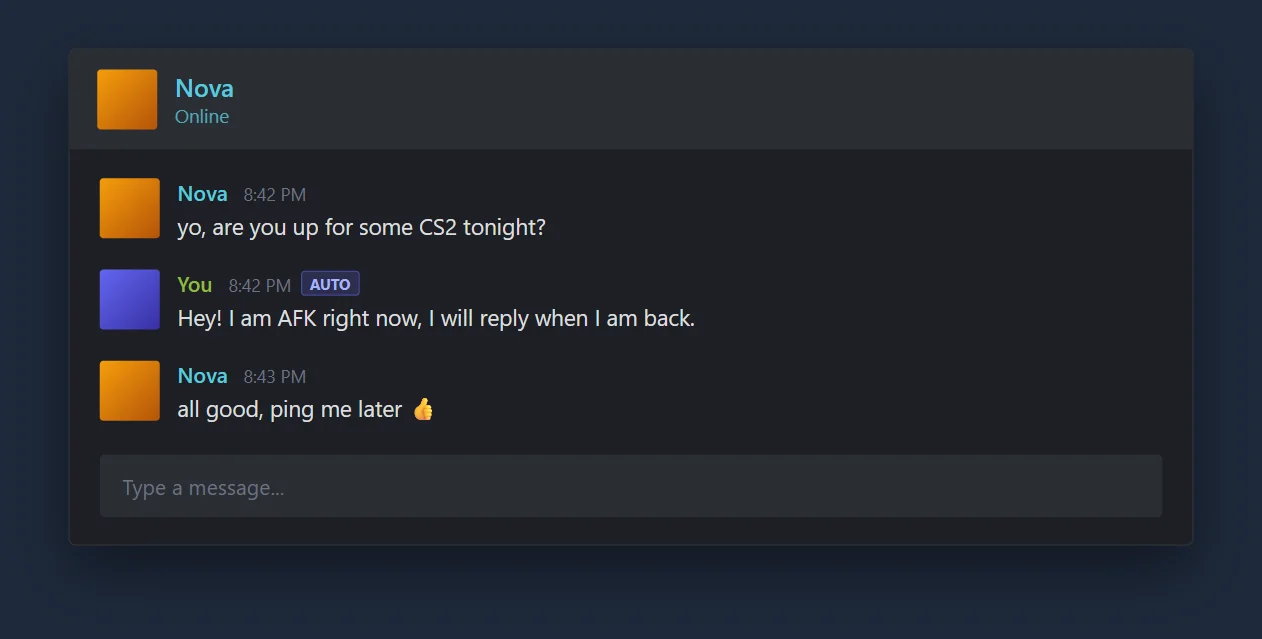
Does Steam have an auto reply?
No. Steam chat has no setting for an automatic reply or away message, in the desktop client, the web chat or the Steam Mobile app. Steam can only show your status, and your friends have to notice it themselves.
Without FreeHourBoost: let your status do the talking
The closest you can get with Steam alone is a status that tells friends you're not around:
- Open the Friends & Chat window in Steam.
- Click the arrow next to your name at the top.
- Choose Away, or Invisible if you don't want to look online at all.
Steam also sets you to Away on its own after you've been idle for a while. The downside: nobody gets an answer. Friends still have to guess when you'll be back, and messages pile up until you check Steam again.
Some people put a note like "AFK, back at 8pm" in their profile name or in-game title instead. That works, but friends only see it if they look at your profile or friends list before they message you.
With FreeHourBoost: a real Steam away message
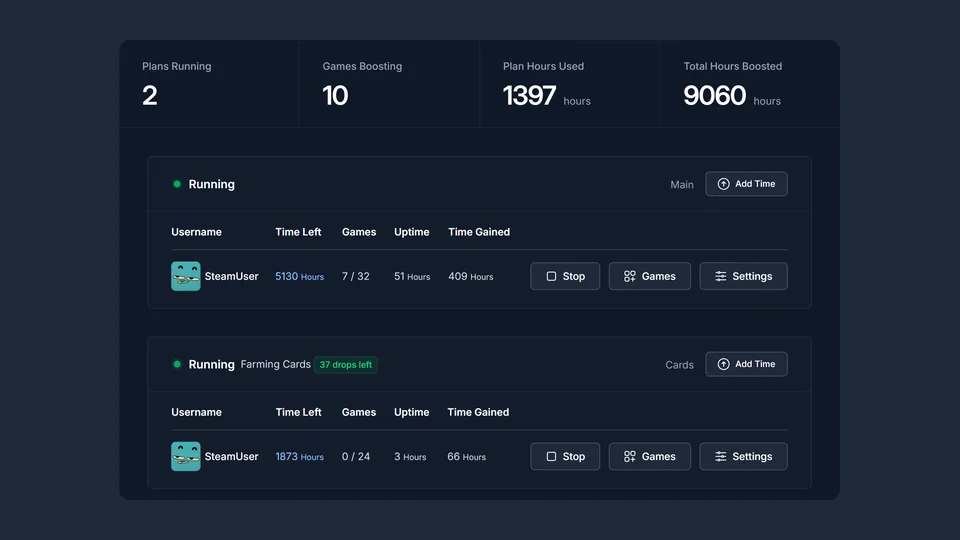
FreeHourBoost runs your Steam account in the cloud, so it can do what Steam can't: reply to every message your friends send with your own away message, while your PC is off.
- Create an account and add your Steam account to a plan.
- Open the plan's Settings and turn on Custom Away Message.
- Type your message. You can use up to 64 characters.
- Start the plan. Anyone who messages you now gets your reply instantly.
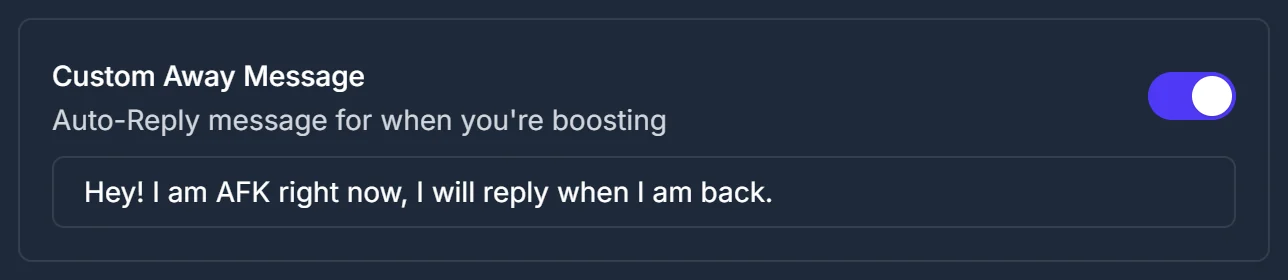
The reply is sent from your own Steam account, so it shows in your chat history on every device, just like a message you typed yourself. On paid plans you write your own message. On the Free plan the message is fixed: "[Auto] I'm Currently Hour Boosting with FreeHourBoost".
Your plan keeps boosting your hours at the same time. When you start playing on your own PC, the plan pauses, so your friends talk to the real you again. With Auto-Restarter on, the plan and your away message come back once you're done.
Away message ideas
- "AFK right now, I'll reply when I'm back."
- "At work until 6pm, message me after that."
- "Sleeping 😴 Talk tomorrow!"
- "Trade offers only please, I check them every evening."
- "Live on stream right now, come say hi!"
Keep it short and friendly. Every friend who messages you sees it, and a vague "busy" can come across as rude, so say when you'll be back if you can.
Common questions
Does the auto reply work when my PC is off?
Yes. FreeHourBoost runs in the cloud, so your PC and Steam client can both be off.
Will people know the reply is automatic?
Only if you tell them. Starting your message with "[Auto]" or "AFK" makes it clear and avoids confusion.
Who gets the away message?
Every friend who sends you a message while your plan is running. Steam only lets friends message you, so strangers won't see it. Want new people to reach you too? Combine it with auto accepting friend requests.